Welcome to Logos Red, I go bylogos and:
If you’ve recently installed Kali Linux with QEMU, you will notice that the window does not automatically resize itself.
It took me a lot of troubleshooting before I realized that:
This is an issue with XFCE not virt-manager.
I will have two methods, I personally recommend the second method by using KDE. The first method has resulted in some crashes.
My Promise
This post will finally end your meaningless search for a valid answer, and you will leave with your Kali Linux machine resizing right.
If there are still any questions left, let me know so I can add it to help the next person who will arrive here.
My Goal
To help you improve in less time than it took me and to make sure you leave with what I promised.
I want you to join our community and for this to be a place you come back to often.
Method 1 : Creating a udev rule
This method is taken from Dannyda , this being the exact post, I just wanted more people to know about this as I could barely find it, all credits go to him.
I’ve checked the script, it is safe to use. But it has given me crashes under XFCE, which is why I recommend installing KDE with method 2.
Step 1 : Create the Udev Rule File
I personally use vim but you can replace vim with nano.
sudo vim /etc/udev/rules.d/50-x-resize.rulesAnd add the following line inside of the file:
ACTION=="change",KERNEL=="card0", SUBSYSTEM=="drm", RUN+="/usr/local/bin/x-resize"Step 2: Create the Bash Script for the Udev Rule
sudo vim /usr/local/bin/x-resizeAnd add the following code snippet
CODE SNIPPET
#!/bin/bash
# Bash required
# Should be run as root and saved to /usr/local/bin/x-resize
# Requies udev rule: /etc/udev/rules.d/50-x-resize.rules
# udev rule content: ACTION=="change",KERNEL=="card0", SUBSYSTEM=="drm", RUN+="/usr/local/bin/x-resize"
# Make sure auto-resize is enabled in virt-viewer/spicy
# Credit for Finding Sessions as Root: https://unix.stackexchange.com/questions/117083/how-to-get-the-list-of-all-active-x-sessions-and-owners-of-them
# Credit for Resizing via udev: https://superuser.com/questions/1183834/no-auto-resize-with-spice-and-virt-manager
## Ensure Log Directory Exists
LOG_DIR=/var/log/autores;
if [ ! -d $LOG_DIR ]; then
    mkdir $LOG_DIR;
fi
LOG_FILE=${LOG_DIR}/autores.log
## Function to find User Sessions & Resize their display
function x_resize() {
    declare -A disps usrs
    usrs=()
    disps=()
    for i in $(users);do
        [[ $i = root ]] && continue # skip root
        usrs[$i]=1
    done
    for u in "${!usrs[@]}"; do
        for i in $(sudo ps e -u "$u" | sed -rn 's/.* DISPLAY=(:[0-9]*).*/\1/p');do
            disps[$i]=$u
        done
    done
    for d in "${!disps[@]}";do
	    session_user="${disps[$d]}"
	    session_display="$d"
	    session_output=$(sudo -u "$session_user" PATH=/usr/bin DISPLAY="$session_display" xrandr | awk '/ connected/{print $1; exit; }')
	    echo "Session User: $session_user" | tee -a $LOG_FILE;
	    echo "Session Display: $session_display" | tee -a $LOG_FILE;
	    echo "Session Output: $session_output" | tee -a $LOG_FILE;
	    sudo -u "$session_user" PATH=/usr/bin DISPLAY="$session_display" xrandr --output "$session_output" --auto | tee -a $LOG_FILE;
    done
}
echo "Resize Event: $(date)" | tee -a $LOG_FILE
x_resize
Step 3: Make it Executable
sudo chmod +x /usr/local/bin/x-resizeThat is our first method done, you can now resize the window and everything should work as intended.
Method 2: Installing a Different Desktop Environment
If you were going to switch desktop environments anyway both GNOME and KDE resize as expected with QEMU. I recommend KDE.
Although you need to use virtio with KDE instead of QXL.
GNOME does not seem to work as intended with Kali so GDM crashes often. But it might for you.
These are the commands to install either on Kali Linux.
For KDE:
sudo apt install kali-desktop-kde
sudo update-alternatives --config x-session-manager
sudo apt purge --autoremove kali-desktop-xfce
At the 2nd command make sure to select plasma.
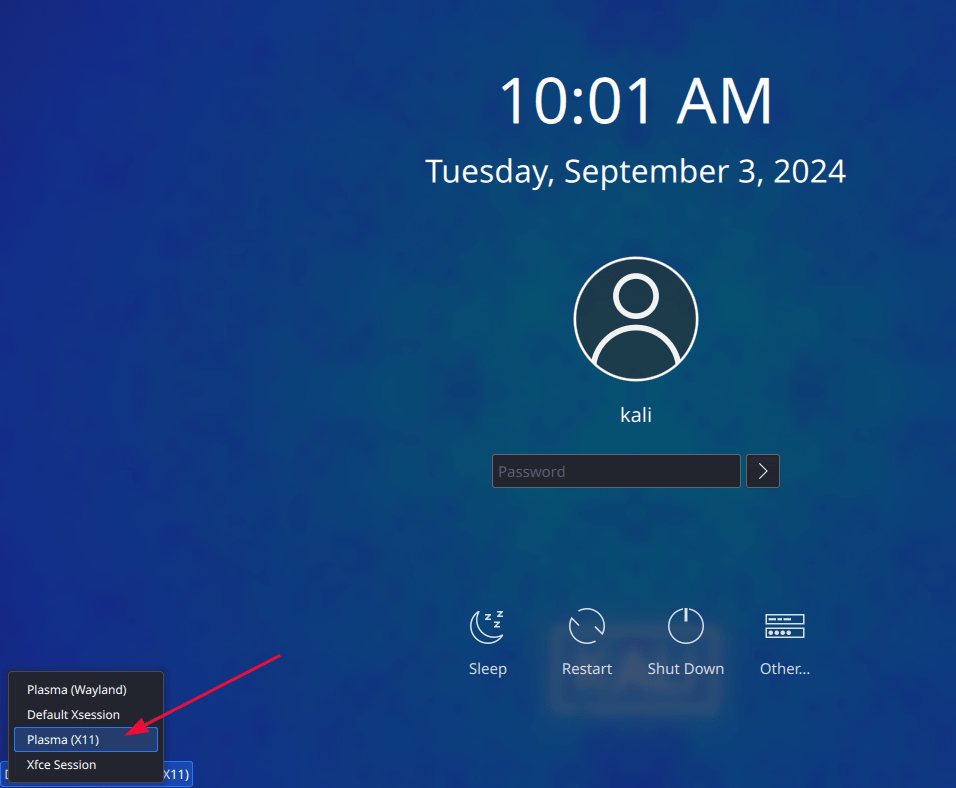
Reboot and in the bottom left make sure to choose “Plasma (X11),” Wayland does not work.
For GNOME:
sudo apt install kali-desktop-gnomeReboot and then in the bottom right choose your new desktop environment

More Resources
If you didn’t understand something or you need some help, we have our own Discord community and I currently offer free coaching.
You can also leave us some feedback with what you did not understand and we will make sure to correct it.