Welcome to Logos Red, I go bylogos and:
If you’ve recently decided to switch to QEMU/KVM from VMware or VirtualBox due to privacy concerns or performance issues this post will help you get up and running as soon as possible.
My Promise
This post will finally end your meaningless search for a valid answer, and you will leave with QEMU/KVM installed.
If there are still any questions left, let me know so I can add it to help the next person who will arrive here.
My Goal
To help you improve in less time than it took me and to make sure you leave with what I promised.
I want you to join our community and for this to be a place you come back to often.
I’m going to be using a Fedora machine, the commands are identical for Debian, but for Arch they differ, so here’s a perfect tutorial for anyone on Arch.
Make sure to replace “dnf” with “apt” if you are on Debian.
Step 1: Make sure that you have virtualization enabled
You can do so with the following command:
egrep -c '(vmx|svm)' /proc/cpuinfoThe command should return the number of CPU cores your machine has. If it doesn’t you need to enable virtualization within your BIOS, here is an article describing how to do it but it varies from motherboard to motherboard.

Step 2: Install qemu-kvm and virt-manager
What is QEMU/KVM?What about virt-manager?
I want you to imagine a pyramid, KVM is at the bottom, QEMU in the middle and virt-manager at the top.
KVM is a kernel module, an add-on for the operating system that allows virtualization to happen, it has responsibilities such as: hardware virtualization, RAM management, CPU virtualization, anything that is low down and has to do with hardware. KVM is the engine that powers it all.
QEMU is software that EMUlates devices such as keyboards, graphics cards, mice,etc it also provides BIOS or UEFI firmware, device passthrough, disk management and networking, anything that stands more between the user and low level hardware. QEMU is the control system.
Virt-manager is a frontend for QEMU/KVM, all that it does is allow you to interact with QEMU/KVM in a more user friendly manner so that you wouldn’t have to use a terminal every time.Virt-manager is the dashboard that allows you to control everything under the hood.
Even though they are used together QEMU and KVM are two different platforms.
sudo dnf install qemu-kvm virt-managerThis will install everything needed to run virtual machines with QEMU.
Step 3: Enable and start libvirtd
What is libvirt?
Libvirt is an API and toolkit that bridges virt-manager and virtualization tech. It acts as an intermediary that helps the two communicate.
You need to enable the libvirt daemon in order for it to start managing virtualization.
sudo systemctl enable --now libvirtd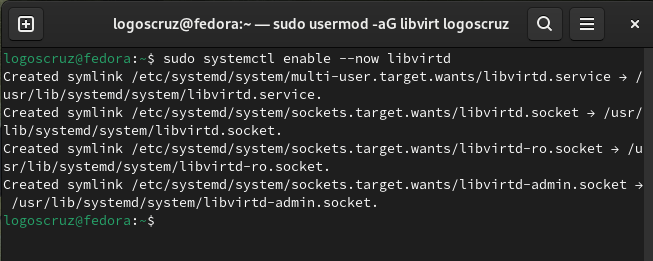
Step 4: Add yourself to the libvirt group
You will notice that if you try to start up virt-manager it asks for a password.You can bypass this by adding your user to the libvirt group.
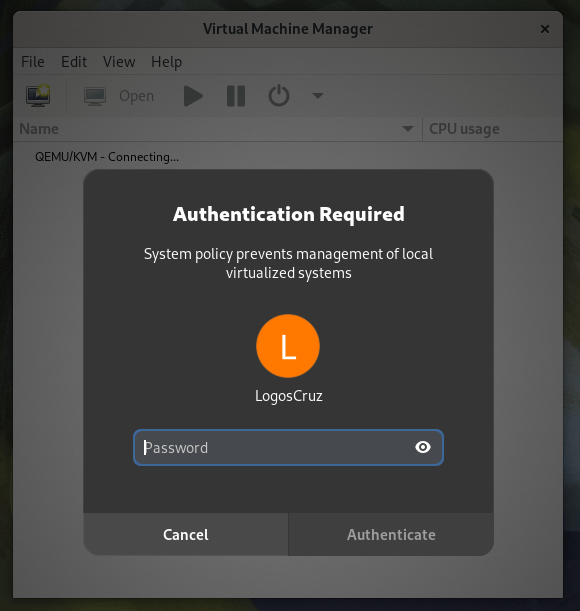
sudo usermod -aG libvirt $USERMore Resources
If you didn’t understand something or you need some help, we have our own Discord community and I currently offer free coaching.
You can also leave us some feedback with what you did not understand and we will make sure to correct it.